


Lockscreen Drawing
3.9268.00 Reviews
App Specs
- Version
- 1.1.1
- Updated On
- License
- Free
- Downloads
- 1,000,000+
- Developer
- EZTech Apps
- Categories
- Personalization
- Platform
- Android
Screenshots
 Analysis by AppCompare
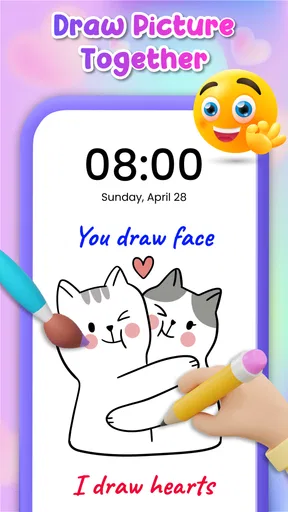
I like the idea of turning a moment spent looking at my phone into a chance to make a quick sketch or capture a passing thought. That is the simple appeal of Lockscreen Drawing: it brings drawing to the lock screen rather than asking me to open a full art or note-taking app. It is a free personalization app from EZTech Apps, and its focus is refreshingly narrow. I would look at it as a playful extra for people who enjoy leaving themselves visual reminders, not as a replacement for a proper sketchbook or secure notes app.
What to expect when you pick up your phone
The speed appeal is about getting to a canvas without navigating through several screens. When a thought occurs while I’m heading out, waiting for someone, or taking a short break, a lock-screen drawing tool can make it easier to capture the idea before I forget it. That quick-access concept is more useful for rough shapes and short reminders than for careful artwork: I would use it to map a tiny idea, not to finish a detailed illustration.
There is a practical trade-off in putting creativity so close to the lock screen. It can make a quick doodle feel effortless, but it also means the experience depends on how the app fits with the way a particular phone handles its locked display. I would try the basic drawing routine first and see whether reaching the canvas feels natural on my device. If I have to interrupt what I am doing or repeatedly unlock and reopen the app, the convenience advantage becomes much smaller.
Where it fits into a busy day
One realistic use is catching a visual reminder before a meeting: I could sketch a rough arrangement of items to bring, draw an arrow beside a task, or leave myself a simple symbol that makes sense at a glance. That sort of note does not need polished handwriting or a carefully organized notebook. The app’s appeal is the low-pressure act of making a mark while the idea is still fresh.
I would keep the drawings short and legible. A lock-screen note is most useful when I can understand it later without having to reconstruct what I meant, so I would choose a simple icon, a few strokes, or a compact reminder rather than filling the whole canvas with detail. That habit also makes the app feel less like a competing art workspace and more like a visual scratchpad.
For shared use, I would treat saved sketches as casual conversation pieces rather than important records. A quick drawing can be a friendly way to explain an idea or send someone a playful visual, but anything that matters for work, travel, or personal organization belongs in a dependable notes or calendar tool as well. That distinction helps keep the app’s fun, spontaneous role clear.
Drawing habits that make the idea work
A useful way to approach any small drawing canvas is to decide what the mark needs to do before starting. If I want to remember an object, I draw its outline; if I need to remember a sequence, I use arrows or numbered marks. This keeps a quick sketch readable and avoids spending time refining something that is only meant to jog my memory.
Worth Reading Before You Choose

EA SPORTS FC Mobile 26 Is a Bigger Football Game, but It Takes Time

Flipboard Shows What News Apps Must Do Beyond the Feed

Switching to Android Auto Means Rethinking Your Driving Routine

Google Calendar Makes a Crowded Week Easier to Manage

Ludo King Makes the Most of the Minutes Between Plans

Baby Panda World Brings Quick Play to Modern Phones, but Its Game Library Feels Busy
Another sensible habit is to make a deliberate choice about what belongs on a visible surface. A doodle or harmless reminder is a better fit than private information. Even when an app is intended for personal creativity, a lock-screen workflow is not the place I would choose for passwords, confidential details, or anything I would be uncomfortable having appear while someone else can see my phone.
It is also worth thinking about what happens after the moment passes. If a sketch matters, I would save it in the app if that option suits the purpose, then move any lasting task or important information into the tool I normally use to find it again. A quick visual capture is valuable because it reduces friction in the moment; it does not automatically make the drawing a well-organized long-term record.
Unlocking Creativity One Swipe at a Time
First things first, setting up the Lockscreen Drawing app is a breeze. I’m talking about a couple of taps, and you’re ready to go. The app integrates seamlessly with both Android and iOS, so no matter what device you’re rocking, you’re covered. Once installed, your lock screen transforms into a dynamic space where you can express yourself with ease.
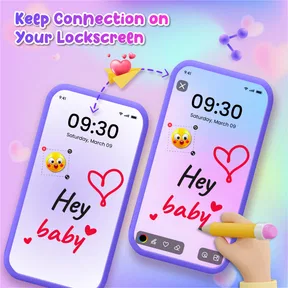
So, what can you do with this app? Well, imagine having a blank canvas every time you pick up your phone. You can doodle, jot down quick notes, or just scribble to your heart’s content. It’s perfect for those moments of spontaneous creativity or when you need to quickly jot down an idea before it slips away. I found myself drawing little sketches whenever I had a free moment, and it was surprisingly therapeutic.
Features that Make a Difference
The app comes with a variety of tools that make drawing on your lock screen a joy. There are different brush sizes, colors, and even erasers to fix those little oops moments. And if you're like me, you’ll appreciate the undo feature. Trust me, it’s a lifesaver.
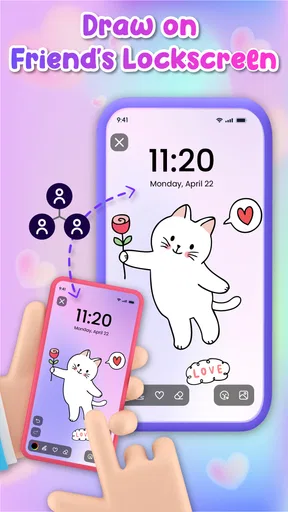
One of the coolest features is the ability to save your creations. You can keep them as a gallery of your masterpieces or share them with friends. I’ve shared a few of my lock screen doodles, and they’ve been quite the conversation starter!
Privacy is always a concern with apps, but the app doesn’t store any data online, so everything you create stays on your device. Plus, it doesn’t interfere with your phone’s security features, which is a huge plus.
Comparing it with other ways to capture ideas
Compared with a standard wallpaper, a drawing canvas offers a more active outlet: instead of choosing a finished image and leaving it untouched, I can make a mark of my own. That is a small but meaningful difference for someone who likes to personalize a phone with something they created. A wallpaper is simpler and better if I want a clean, static look; this app makes more sense if I want to interact with what I see.
Compared with a conventional drawing app, the lock-screen approach favors immediacy over depth. A full art app is the better choice when I need layers, precision, or a longer session. A notes app is usually the safer choice for text I must search, organize, or reliably revisit. I would choose this one when a spontaneous doodle is the point, not when I need a complete system for creative projects or reminders.
The tools described in the app are enough for casual sketching: changing brush sizes and colors, correcting mistakes with an eraser or undo, and keeping or sharing a finished drawing. That set of options encourages experimentation without turning the experience into a complicated art lesson. The trade-off is that anyone who expects a professional drawing toolkit may find the simple approach limiting.
Who is likely to enjoy it
I think it suits people who already doodle in the margins, enjoy customizing their phone, or like visual rather than purely written reminders. It can also be a pleasant option for a family member who wants a low-pressure way to make small pictures. The Everyone content rating reflects its broad intended audience, while the actual appeal still depends on whether drawing is something you enjoy doing in short bursts.
Someone who prefers an uncluttered lock screen may be happier with a plain background. The same goes for people who mainly need dependable task management, detailed art tools, or a place to store sensitive notes. For those needs, a dedicated note, calendar, or drawing app is more appropriate. I would not install a lock-screen drawing tool expecting it to replace those established workflows.
Before relying on it for a particular daily routine, I would test how it behaves on my own device: make a small drawing, leave the app, return, and check whether the experience still feels convenient. This is a practical way to judge the part that matters most—the transition between wanting to draw and actually reaching the canvas—without assuming that every phone handles the lock screen in exactly the same way.
Is It for Everyone?
While I thoroughly enjoyed my time with the app, I can see how it might not be everyone’s cup of tea. If you’re someone who prefers a more minimalist lock screen, the constant presence of a drawing tool might be a bit much. However, for those who love to draw, jot down notes, or simply need an outlet for creativity, this app is a gem.
Also, if you’re worried about battery life, the app is quite efficient. I didn’t notice any significant drain on my device, which is always a concern with apps that run on your lock screen. It’s optimized to use minimal resources, so you can keep doodling without worrying about finding a charger.
Cost, compatibility, and the overall trade-off
The app is free to download, with in-app purchases listed from $7.99 to $39.99 per item. I would start with the free experience and decide whether the drawing routine is something I will actually use before considering any purchase. The key question is not how many sketches I might make in one sitting, but whether having a quick canvas changes what I do with a spare moment often enough to justify paying for anything extra.
It is rated for Everyone, has an average rating of 3.6 from around 4,200 ratings, and has been installed over a million times. Those figures suggest that it has reached a substantial audience while leaving room for mixed experiences. I would treat the rating as a prompt to check whether the app’s particular lock-screen workflow suits me, rather than as a guarantee that it will feel equally smooth on every device.
Its current version is 1.1.1, and it runs on Android 7.0 or later. Those details make it easier to decide whether an Android device meets the stated minimum, but the best test of everyday fit is still trying the drawing flow on the phone I plan to use. Lockscreen behavior can be an important part of the experience, so a feature that sounds convenient in theory should feel convenient in practice.
Final Thoughts
Overall, the app is a fun and functional tool that brings a splash of creativity to your daily routine. It’s easy to use, packed with features, and doesn’t compromise your device’s security. If you’re looking to add a bit of flair and functionality to your lock screen, I’d definitely recommend giving it a shot.
Whether you’re a budding artist or just someone who loves to jot things down, this app has something for everyone. So why not give it a try? You might just find that your lock screen becomes your new favorite place to create.
Pros
- Enhances creativity through interactive sketches.
- Simple and intuitive user interface.
- Regular updates with new drawing tools.
- Offline functionality for uninterrupted use.
- Low impact on battery and storage space.
Cons
- Limited color palette in free version.
- Ads can be intrusive during use.
- No cloud save for drawings.
- Lacks advanced editing features.
- Requires frequent permissions access.
FAQs for Lockscreen Drawing
What is Lockscreen Drawing and how does it work?
Lockscreen Drawing is a creative app that allows users to draw directly on their lock screen. It provides various tools such as brushes, colors, and shapes, enabling users to personalize their lock screen with unique artwork. The app automatically saves your drawings, ensuring you can revisit or modify them anytime.
Is Lockscreen Drawing available for both Android and iOS?
Yes, Lockscreen Drawing is available on both Android and iOS platforms. Users can download it from the Google Play Store for Android devices and the App Store for iOS devices. Ensure your device meets the app's compatibility requirements for optimal performance.
Does Lockscreen Drawing impact battery life significantly?
Lockscreen Drawing is designed to be efficient with battery usage. However, as with any app that runs on the lock screen, it may slightly impact battery life. The app includes options to adjust settings for minimal battery consumption, allowing users to balance creativity and battery efficiency.
Can I share my drawings from Lockscreen Drawing with friends?
Yes, Lockscreen Drawing allows users to easily share their creations with friends and family. The app supports sharing via social media platforms, messaging apps, and email. After finishing a drawing, simply select the share option and choose your preferred method of sharing.
Are there any in-app purchases or ads within Lockscreen Drawing?
Lockscreen Drawing is free to download, but it includes optional in-app purchases for additional features and tools. The free version contains ads, although users can opt for a premium version to remove ads and access enhanced functionalities. This ensures flexibility for both casual and dedicated users.


